Forms in Subflow
Last updated About 2 months ago
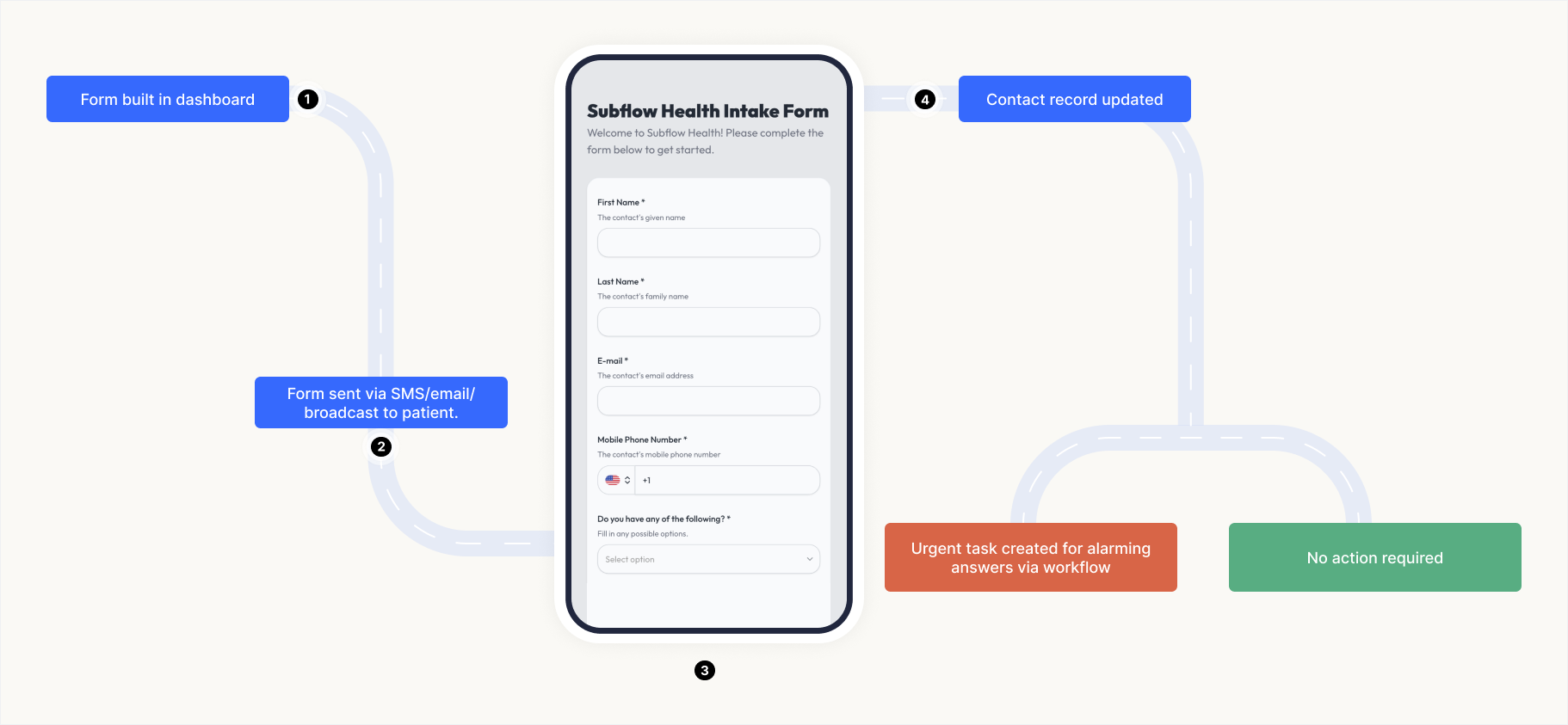
Forms are digital questionnaires delivered to contacts via SMS, email, or broadcast. Contacts receive a form as a link, fill it out in their browser, and submit it. They do not need to install an app or log in with any credentials to access a form.
Forms serve a range of clinical and operational purposes, including:
Onboarding and intake
Symptom check-ins
Screening questions
Post-visit follow-up
The answers submitted by the contacts flow back into Subflow automatically, updating their contact record, adjusting their segment membership, and triggering the next steps in their care plan.
How forms are built
To create a form, first you need to create contact fields. Think of contact fields as the building blocks of your form, each one representing a piece of information you want to collect (like name, email, or phone number).
Once you've created your contact fields, you can use them to build your form by adding them as questions. Learn how to create contact fields in our Create a Contact Field Guide.
Each contact field has a type that determines how information is collected. Available field types include:
Single-line text
Multi-line text
Email address
Dropdown select
...and more.
You can also add validation rules to ensure data quality, such as character limits, number-only input, or marking fields as required. Learn more about the [available contact field types ]and how to use them.
Form features
Beyond the field types, Subflow supports several structural and logic features that control how questions are presented to contacts and how responses are handled.
Multi-step forms
A form can be organized into multiple steps, which divide the questions into separate pages. The contact moves through one step at a time. All required fields on the current step must be completed before the contact can advance to the next step. Multi-step forms are useful for longer questionnaires where presenting every question at once would feel overwhelming.
Conditional fields
Forms support conditional fields that appear or stay hidden based on a contact's answer to a controlling question. For example, a question about medication side effects might only appear if the patient answered yes to a prior question about taking that medication.
The controlling field must be a type with predetermined answer options. Valid controlling field types are:
Dropdown
Multiple-checkbox
Yes/no
Free-text fields cannot serve as controlling fields because their answers cannot be predicted in advance.
Alarming answers
When a contact field is set up, specific answer options can be marked as alarming. When a patient selects an alarming answer, that response appears in red on the form submission view, signaling to staff that the response needs attention.
Workflows can also listen for alarming answers, automatically routing the patient to an escalation path (such as creating a high-priority task for a nurse) when a concerning response is submitted.
How form answers update Subflow
When a patient submits a form, their answers update the matching contact fields on their contact record automatically. This single event can trigger 3 downstream effects:
Contact record: The submitted values update immediately. Staff who open the record see the current data without navigating to the form submission separately.
Segment membership: Segments are built on contact field values and tags. If a submission changes a value so that a patient now meets or no longer meets a segment's conditions, they enter or exit that segment automatically.
Workflow paths: A workflow waiting for a form submission can evaluate the answers and branch into different paths. For example, a high pain score may route a patient to an escalation path while lower scores continue through the standard care sequence.
Forms connect several parts of Subflow together. They depend on contact fields, which must exist before a form can be built. They can be sent manually or through workflows. The data they collect feeds into segments, which determine who receives SMS broadcasts and how future workflows branch.
💡 Forms not opening? Some browsers and email clients block pop-ups by default, which can prevent forms from opening in a new window. If clicking a form link doesn't seem to do anything, check that pop-ups are allowed for this site, or try clearing your browser cache and reloading the page.
Related articles
Now that you understand how forms work in Subflow, check these related articles to start building and using them.
Build a Form: Step-by-step guide to creating a new form, adding contact fields from the shared library, organizing questions into multi-step pages, and configuring conditional fields.
View and Manage Form Submissions: Learn how to open the submissions view for any form, read patient responses, identify alarming answers highlighted in red, and understand how submitted data connects to the contact record.
Workflows in Subflow: Understand how workflows send forms to patients, listen for submissions, and branch into different paths based on what patients answer.