Manage a Broadcast
Last updated 3 months ago
A Broadcast moves through different statuses based on the actions you take:
When you save a Broadcast without sending or scheduling it, it remains in Draft status and can still be edited.
Once a Broadcast has been scheduled or sent, its content is locked. You can no longer edit the message, recipient segments, or send time.
However, you can cancel a scheduled Broadcast before it is sent, archive a Broadcast to keep your list organized, or restore an archived Broadcast if needed.
Follow this guide to learn how to manage Broadcast statuses, including canceling, archiving, and restoring Broadcasts.
Before you start
Make sure you have:
An existing Broadcast in your Subflow account (scheduled, sent, or archived, depending on the task).
Permission to manage Broadcasts from your Subflow account.
✏️ Broadcasts cannot be permanently deleted in Subflow. Instead, archive them to keep your main list organized while preserving a record of past Broadcasts.
Manage a draft broadcast
If you saved a Broadcast without sending or scheduling it, it appears on the SMS Broadcasts page with a Draft status label. Follow the steps below to take action.
Go to Messaging > SMS Broadcasts.
Find the Broadcast you want to manage. Draft Broadcasts are listed on the main page and display a Draft status label.
Click the Broadcast to open it.
Choose one of the following actions:
Edit: Update the name, recipient segments, or message content. You can edit a Broadcast as many times as needed while it remains in draft status.
Send Broadcast: Send the message to all selected segments immediately.
Schedule Send: Pick a date and time to send the message later.
Archive Broadcast: Move the Broadcast off the primary list. The record is kept and can be restored at any time.
Cancel or archive a Broadcast
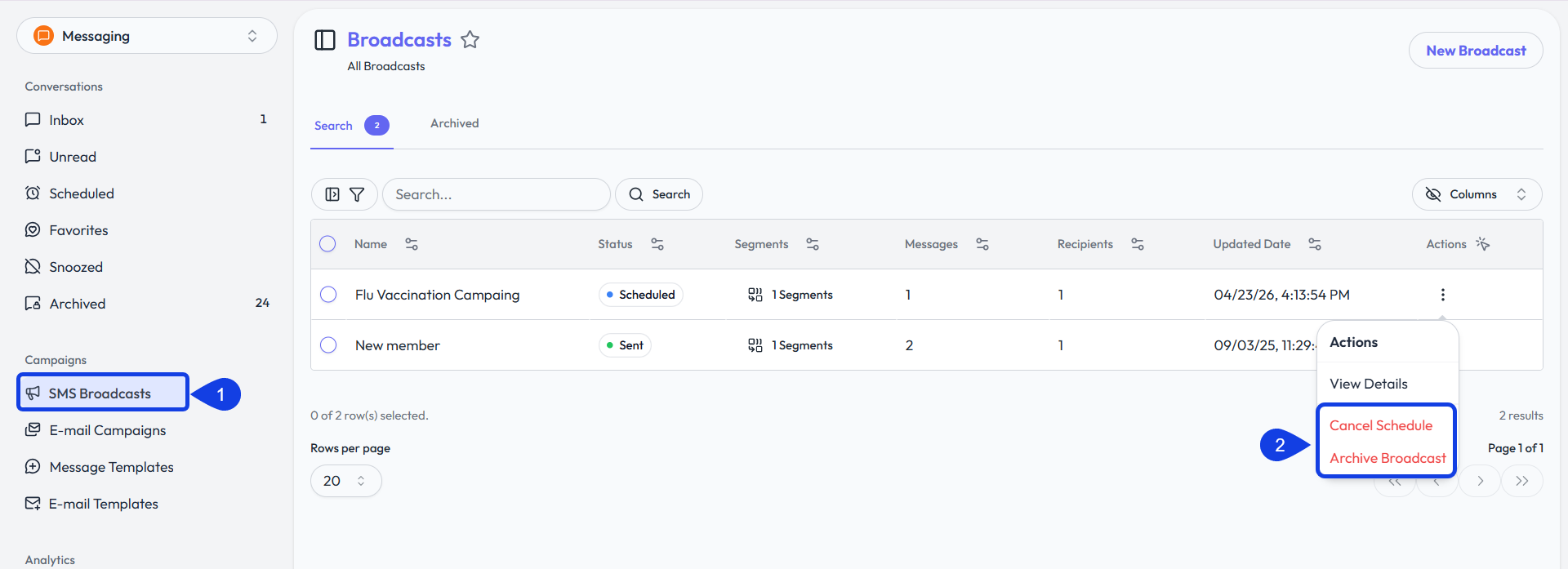
Both actions start from the SMS Broadcasts list and use the same contextual menu on the Broadcast row.
Cancel Schedule stops a scheduled Broadcast from being sent. The record is kept for reference, and its status changes to Canceled. Cancel Schedule is only available for Broadcasts in Scheduled status.
Archive Broadcast moves the Broadcast off the primary list into the Archived tab. The record is kept and can be restored at any time.
To cancel a scheduled Broadcast:
Go to Messaging > SMS Broadcasts to view the SMS Broadcasts list.
Find the scheduled Broadcast you want to cancel, open the contextual menu, and select Cancel Schedule.
Confirm the cancellation. The Broadcast status changes to Canceled, and the record remains in the list.
⚠️ Canceling cannot be undone. If you still want to send the message, Create a New Broadcast.
To archive a Broadcast:
Go to Messaging > SMS Broadcasts to view the SMS Broadcasts list.
Find the Broadcast you want to archive, open the contextual menu, and select Archive Broadcast. The Broadcast moves to the Archived tab.
Restore an archived Broadcast
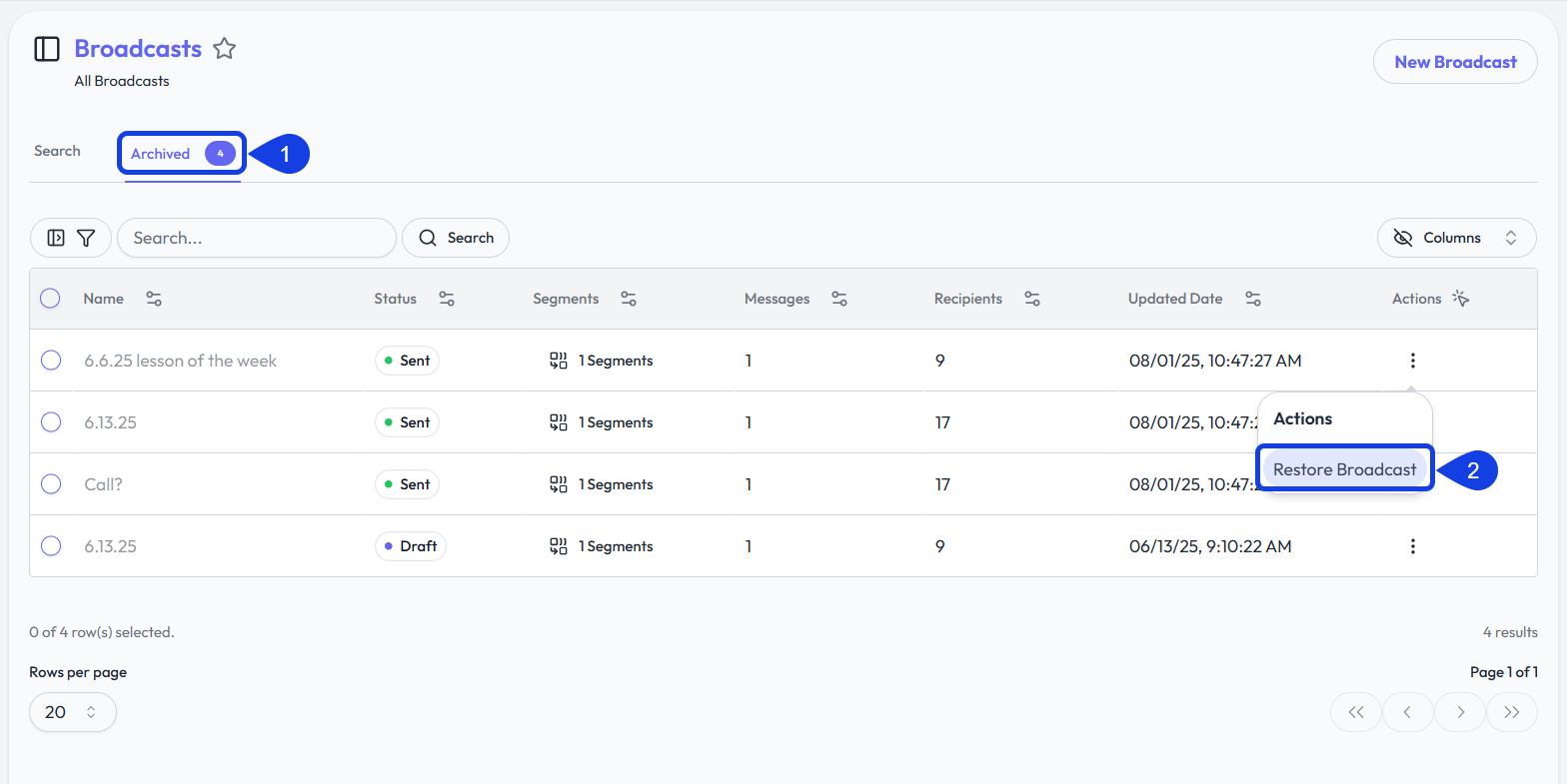
Restoring moves a Broadcast back onto the primary list.
Open the archive view of the SMS Broadcast list.
Find the archived Broadcast you want to restore and click Restore Broadcast. It returns to the primary list with its previous status.
Related articles
Now that you know how to manage a Broadcast, you can explore these related guides.
Create an SMS Broadcast: Send a new one-to-many SMS message to one or more segments.
Create a Segment: Group contacts by tag or form-data condition so you can target them with a Broadcast.
Create a Message Template: Save reusable SMS and email message bodies for Broadcasts, workflows, and direct conversations.